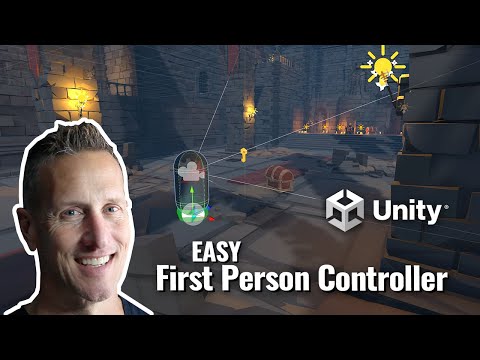
Unity FP - Unlock a Chest with a Key in Unity with Playmaker
In this Unity tutorial, I'll show setting up a key and the chest to unlock the treasure chest in Unity using Playmaker. ► Unity First Person Controller - https://assetstore.unity.com/packages/essentials/starter-assets-first-person-character-controller-196525?aid=1101lfDIN ► Art Assets - Synty - POL
Lock-and-key gating is one of the most reusable interaction patterns in game development — the same logic drives keycards, quest items, and ability gates. This guide walks through the video's complete Playmaker setup: a collectible key, a chest that checks whether you have it, and the messaging between them. No C# required.
Step 1 — Make the key clickable
Start with your key model in the scene. For the player to interact with it, it needs a collider — add a Box Collider to the key's GameObject. One practical tip from the video: size the collider slightly larger than the key mesh itself. Small pickups are fiddly to click, and the extra padding gives players forgiving hit detection without being visually noticeable.
Step 2 — Track key ownership on the chest
Open the treasure chest's Playmaker FSM. Add a new variable named 'hasKey' of type Bool — this single true/false flag is the heart of the whole system. The chest starts with two states: an empty start state and an interaction state that currently opens the chest directly. Move the opening actions (activating the light, tweening the lid rotation) out of the interaction state into a brand-new state called 'Open Chest'. The interaction state's new job is purely to decide whether opening is allowed.
Step 3 — Gate the chest with a Bool Test
In the interaction state, add a Bool Test action checking the 'hasKey' variable. If true, fire an 'open chest' event that transitions to your Open Chest state. If false, transition back to the start state — the chest simply refuses to open. This pattern (interaction → test → branch) is worth memorizing; it's the same structure you'd use for locked doors, NPC dialogue conditions, or ability checks.
Step 4 — Set up the key's FSM
Add an FSM to the key (unpack the prefab first if needed). Give it an empty init state and a global transition listening for your custom interaction event — the same message your player controller broadcasts when clicking objects. When the interaction fires, the key does two things. First, it uses Set FSM Variable to reach over to the chest GameObject and set its 'hasKey' Bool to true — copy/paste the variable name to avoid typos, since the lookup is by exact name. Second, it runs Destroy Self, removing the key from the scene now that it's served its purpose.
Step 5 — Test the loop
Hit play and click the chest first: the Bool Test fails and you bounce back to the start state — locked. Now click the key (it sets the chest's flag and disappears), then click the chest again: the test passes, the lid tweens open, and the treasure light activates.
From here the pattern extends naturally: multiple keys become multiple Bool variables or an Int counter, and the Set FSM Variable technique works for any cross-object state you need — alarms notifying guards, switches opening gates, or collectibles updating a door's lock state.
Show / hide transcript (158 segments)
Related Tutorials

Set up a Simple Reticle for First Person Controller in Unity

Unity 3D + Playmaker - EASY Mech First Person Shooter

Easy - First Person Player Movement using Unity with Playmaker - Beginner Game Dev Tutorial #Shorts

Unity 3D + Playmaker - EASY Mech Shooter Projectile & Sound
Unity - FREE Starter Asset - First Person Controller
