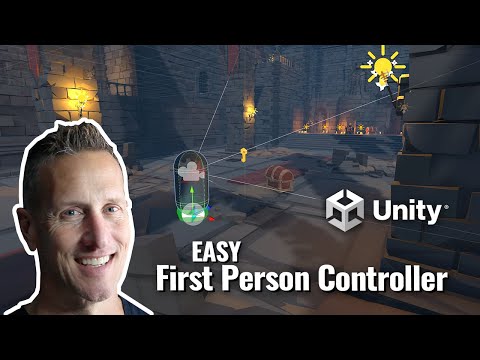
Beginner VERY EASY First Person Controller with Playmaker in Unity 3D
YES... A VERY EASY first person controller using Playmaker within Unity 3D. Absolutely NOCODE. 👉🏼 To Sign up for email updates on my latest tutorials and game progress. https://sendfox.com/bliz ► Download Unity at https://unity.com ► Visit Mixamo for awesome characters and animations at https
A first-person controller is the foundation for shooters, puzzle games, walking sims — and this one needs zero code. Three small Playmaker FSMs handle mouse look, movement, and jumping, all riding on a capsule with the camera tucked inside. Here's the full build.
Step 1 — Ground and player body
In a basic URP scene, create a Plane at the origin, scaled 10 x 10 for walking room. It keeps its mesh collider and gets a Rigidbody with Use Gravity off and Is Kinematic on — solid and immovable. The player is an empty named Player (tagged with the built-in player tag) containing a capsule named Player Core, raised above the plane. The capsule's Rigidbody uses gravity (needed for jumping and landing) with Is Kinematic off — and freeze rotation on X, Y, and Z, or the capsule literally falls over the first time you look around, as the video demonstrates.
Step 2 — Put the camera inside the capsule
Parent the main camera to Player Core, zero its local position, then nudge it up to roughly eye height. Because the capsule's normals face outward, the camera sees right through it from inside — you never need to hide the body mesh for first person.
Step 3 — Mouse look
On the Player object, add an FSM named Mouse Look with the Mouse Look action set to every frame. Two fixes from testing: the vertical axis starts inverted (mouse up looks down), solved by flipping the Y sensitivity from 15 to a negative value — and halving it to -8 tames the twitchiness. Clamping the min/max Y to around 30 degrees stops the camera from pitching too far toward the floor or sky.
Step 4 — WASD movement
A second FSM named Move uses two Get Axis actions reading Horizontal and Vertical — Unity's Input Manager (Edit > Project Settings) already maps these to both the arrow keys and WASD, so check the exact names there and copy them. Store the results in x move and y move variables, every frame. Then a Set Velocity action applies them — with two catches. First, the FSM sits on the parent Player, but the Rigidbody is on Player Core, so specify Player Core as the game object or Playmaker complains about a missing rigid body. Second, the axis mapping: x move drives the X velocity, but y move (the up/down keys) drives the Z axis — forward and backward in the world — not Y, which is vertical. Check every frame on everything, and add a multiplier of about 5 per axis when the default speed proves glacial.
Step 5 — Jump with a cooldown
A third FSM named Jump (kept separate so all three systems run simultaneously) uses Get Key Down on Space to fire a make player jump event. That state runs Set Velocity on Player Core with a hardcoded Y of 10 — every frame deliberately unchecked, so it's one impulse and gravity handles the descent. Looping straight back to the listener allows infinite midair re-jumps, so the loop instead routes through a Wait state — tuned in the video from 1.2 up to 2 seconds, about the time it takes to land. Alternatives if the feel is off: raise gravity, lower the jump velocity, or shorten the wait. With that, you've got a complete first-person controller ready for any genre.
Related Tutorials

Set up a Simple Reticle for First Person Controller in Unity
Unity - FREE Starter Asset - First Person Controller

Easy - First Person Player Movement using Unity with Playmaker - Beginner Game Dev Tutorial #Shorts

Unity 3D + Playmaker - EASY Mech First Person Shooter

Unity Playmaker - First Person - Hide Mouse Cursor
