Hierarchy Pro
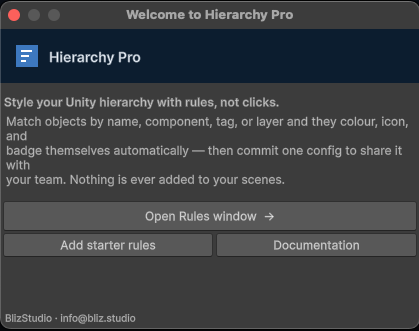
Style your Unity hierarchy with rules, not clicks.Match GameObjects by name, component, tag, or layer and they color, icon, and badge themselves automatically — across every scene — then share the whole setup with your team in one git-friendly config. Editor-only, render-pipeline agnostic, and it never touches your scene.
Coming soon. Hierarchy Pro has been submitted to the Unity Asset Store and is awaiting review. Want a heads-up the day it goes live? Email info@bliz.studio or join the Discord. This page is the official documentation — it'll gain the store link and download details at launch.
Overview
A messy Unity Hierarchy slows everyone down. Hierarchy Pro lets you describe what should be styled and how — then applies it everywhere, automatically, as your scene changes. Match GameObjects by name, component, tag, or layer and they color, icon, and badge themselves across every scene. It's an Editor-only tool: nothing ships in your build, and it never modifies the scene itself.
Quick start
- Open
Tools → Hierarchy Pro → Rules. - Click Create Config Asset (creates
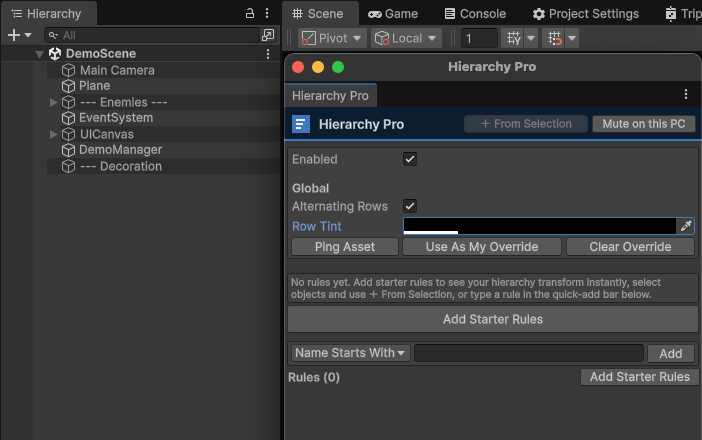
Assets/HierarchyPro/HierarchyProConfig.asset— commit this to share it with your team). - Click Add Starter Rules to see your hierarchy transform instantly, or add your own.
Example — color every enemy and badge it: set Match = Name Starts With → NPC_, enable Text Color (red) and Badge = ENEMY. Every NPC_* object turns red with an ENEMY badge.
The Rules window
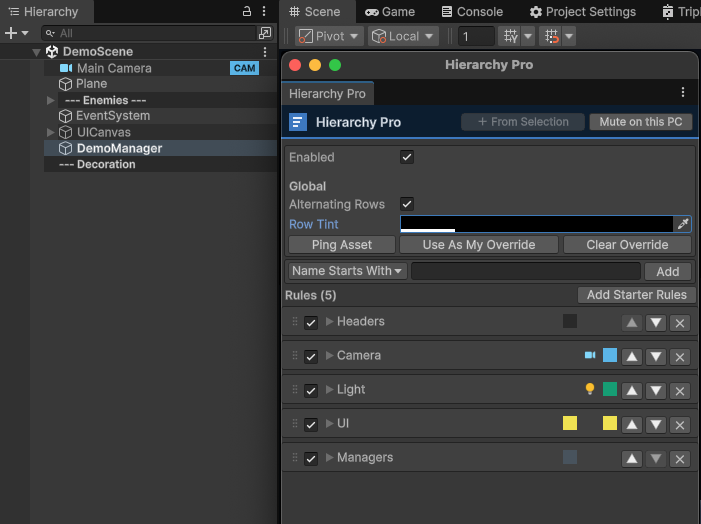
A single config asset holds all your rules and global options. Because it's a normal project asset, you can commit it to version control and share identical hierarchy styling with your whole team — no per-machine setup.
Add rules fast
- Quick-add bar — pick a match type, type a value, press Enter.
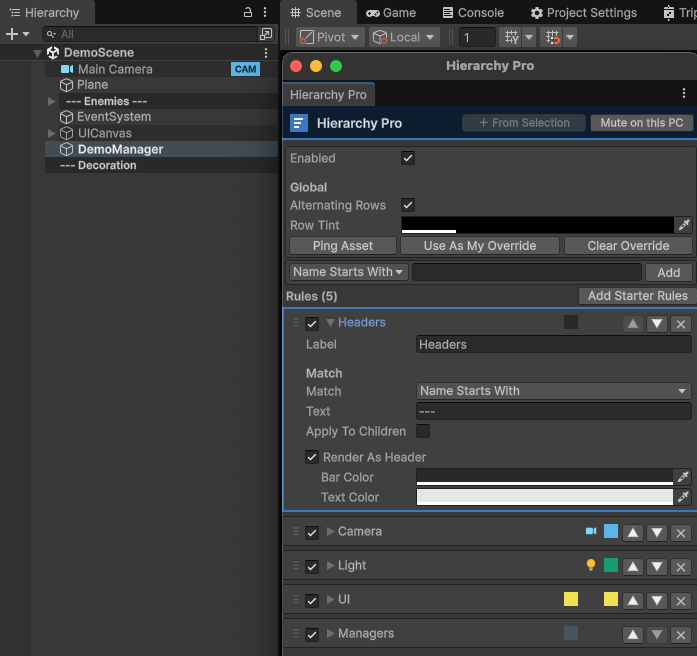
- + From Selection — select objects and let Hierarchy Pro infer the best rule (shared component, common name prefix, tag, or layer), pre-colored. Also on the Hierarchy right-click menu.
- Add Starter Rules — a ready-made set (headers, cameras, lights, UI, managers).
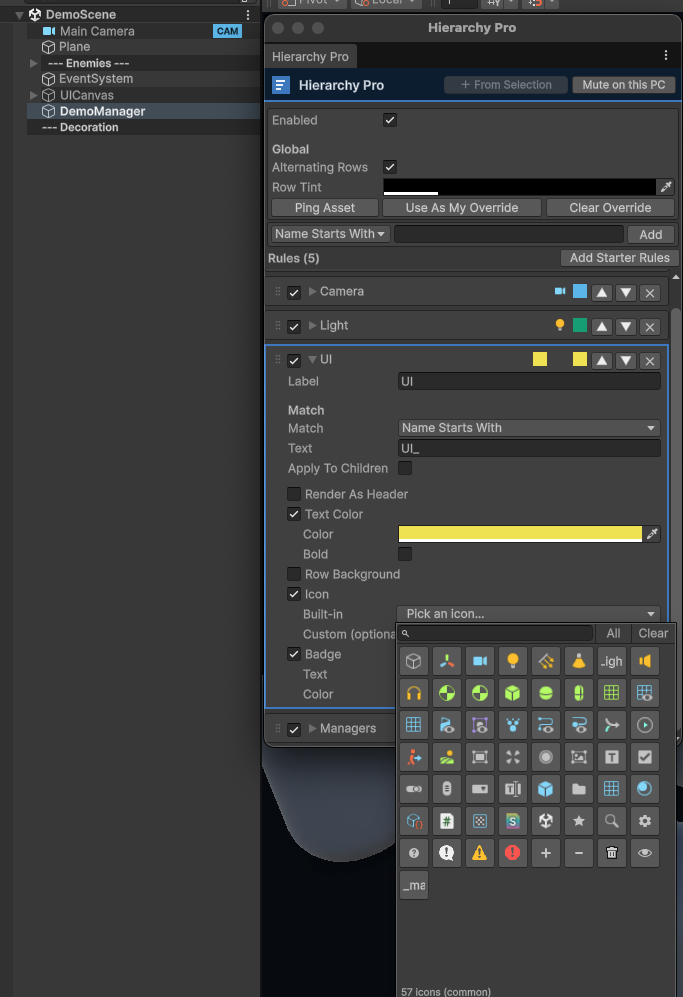
Each rule is a compact card with a live color/icon preview. Click to expand and edit; use the ⠿ handle to drag-to-reorder. The value field adapts to the match type — a tag dropdown for Tag, a layer dropdown for Layer, a component picker for Has Component, and a live validity check for Regex.
Match types
A rule matches a GameObject using one of seven match types:
| Match type | Matches when… | Example |
|---|---|---|
| Name Equals | name equals the text (case-insensitive) | Main Camera |
| Name Starts With | name begins with the text | UI_ |
| Name Contains | name contains the text | Spawn |
| Name Regex | name matches a .NET regular expression | ^NPC_.+$ |
| Has Component | object has a component of that type | Camera |
| Tag | object's Unity tag equals the value | Player |
| Layer | object is on that layer | UI |
Rules evaluate top-to-bottom and layer, so broad rules plus specific overrides do exactly what you'd expect.
Styling options
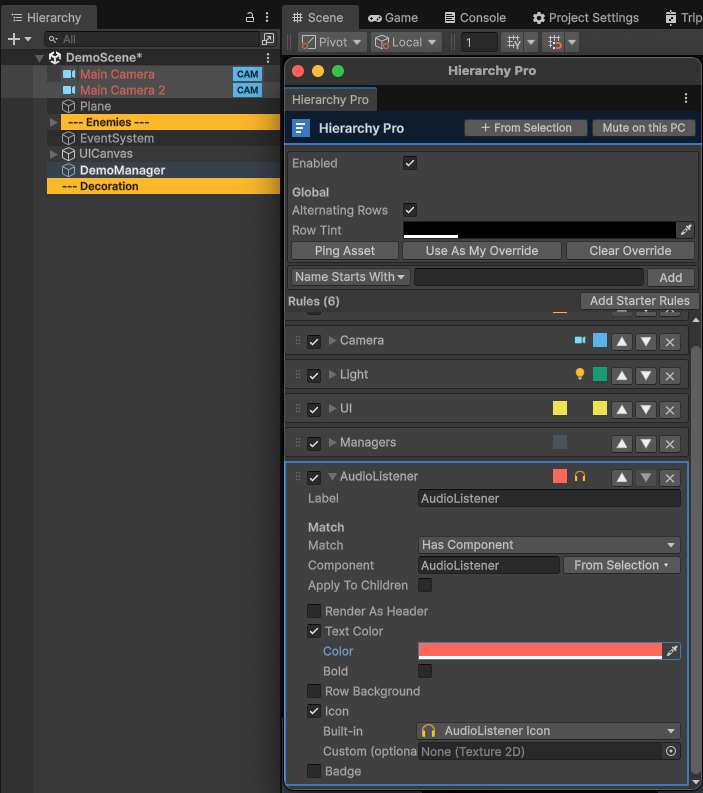
- Text & background — override text color and/or bold, and/or a full-row background tint. Row labels auto-pick black/white for legibility.
- Icons — pick a built-in editor icon from the visual picker (common set, or All to browse the full catalog), or assign your own texture. Your icon cleanly replaces the default object icon.
- Badges — a short right-aligned badge (e.g. UI, CAM, ENEMY) with auto-contrast text.
- Headers & dividers — render organizer objects as clean full-width header bars. No empty
=====GameObjects; on a folder object the foldout arrow stays visible and clickable. A header's colors can be overridden by another, more specific rule that also matches the row. - Alternating rows — a subtle zebra tint for easier scanning; names stay readable at any opacity.
Team workflow
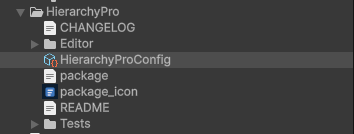
- Shared config — all rules live in
Assets/HierarchyPro/HierarchyProConfig.asset. Commit it and every teammate gets the same styling automatically. - Mute on this PC — turn all styling off on your machine only, without editing the shared asset (stored per-user).
- Personal override — point Hierarchy Pro at your own config with Use As My Override, and return with Clear Override.
Colorblind-safe & non-destructive
New rules default to a colorblind-safe palette (distinguishable across all common types of color blindness), and you can pair color with icons and badges so styling reads for everyone.
Hierarchy Pro only draws — it never adds components, renames, reparents, or creates marker objects. Turning it on or off, or removing the asset, cannot modify, break, or bloat a scene. It's fully reversible.
Compatibility & support
- Unity 2022.3 LTS, 2023.x, and Unity 6 (6000.x)
- Built-in, URP, and HDRP — render-pipeline agnostic
- Editor-only — nothing ships in your build; no dependencies
Questions, bugs, or feature requests? Email info@bliz.studio or join the Discord. See the changelog for release notes.
FAQ
Does it modify my scene?
No. Hierarchy Pro only draws in the Editor — it never adds components, renames, reparents, or creates marker objects. Turning it on or off, or removing the asset entirely, cannot modify, break, or bloat a scene. It's fully reversible.
Does it work in Unity 6?
Yes. Hierarchy Pro supports Unity 2022.3 LTS, 2023.x, and Unity 6 (6000.x), and is render-pipeline agnostic — Built-in, URP, and HDRP all work the same.
Is the config shareable across a team?
Yes. All rules live in a single HierarchyProConfig.asset in your project. Commit it to version control and every teammate gets the same hierarchy styling automatically — no per-machine setup. You can also mute styling on your own PC or point at a personal override without touching the shared asset.
Is it colorblind-safe?
Yes. New rules default to a colorblind-safe palette that stays distinguishable across all common types of color blindness, and you can pair color with icons and badges so styling reads clearly for everyone.
Pairs naturally with Multi Tag — tag your objects, then let Hierarchy Pro style them by those tags, layers, or components for a hierarchy that reads at a glance. Looking for free browser utilities? See our free game dev tools.