Unity VR XR Interaction Toolkit - UI Menu and Interactions
In this Unity VR XR Toolkit tutorial, I'll show how to set up UI for VR by an adding a UI Menu and Button Interactions to order a burger. I'll create 2 menus, and selecting a button will turn one off and the second one on. ► Art Assets - Polygon City - Low Poly https://bit.ly/3ScOYa1 My discord
Set in the Mel's Burgers VR scene, this tutorial builds a world space menu the player can point at and click with the controller: a "ready to order?" panel that, when its button is pressed, swaps itself out for a burger menu. No code — the XR Interaction Toolkit's canvas and Unity's built-in button events handle everything.
Use the XR UI canvas
Create an empty object named UI to keep things organized. For the canvas, skip the regular Unity canvas — it defaults to screen space overlay, which renders on top of the camera. Choose the XR UI Canvas option instead: it comes pre-configured as world space, so the menu exists inside the world where a VR player can actually approach it. Name it order menu, and inside it add an empty called ready to order for the first screen.
Scale and angle the panel
Add a UI Panel, which auto-stretches to the canvas edges — and reveals the canvas is enormous in world space. Scale the canvas (not the panel) down: lock the axes and try 0.01, then nudge to about 0.006 once you see it in the scene. World space buys you a nice trick: rotate the whole menu to tilt slightly upward so the player looks comfortably down at it, like a real counter menu. Make the panel black and fully opaque as a design choice.
Add text and a responsive button
Add a TextMeshPro text reading "Ready to order?", scaled to fit and centered, moved up to leave room below. Then add a Button - TextMeshPro, scale it into place, and set its label to Order. Feedback matters in VR, so style the button's interaction states: a bright orange normal color, a deeper orange for highlighted (when the controller's raycast hovers it), and a greener tone for pressed. In the headset, rolling the cursor over the button and pulling the trigger now gives clear visual confirmation at each step.
Swap menus with On Click
Duplicate the ready to order object, rename it menu, and change its text and button so it reads as the burger list. Disable it — it should start hidden. Then select the first menu's button and scroll to its On Click event list. Add two entries: the first drags in the ready to order object and calls GameObject.SetActive with the checkbox off, turning the first menu off; the second targets the menu object with SetActive checked, turning it on. Test in VR: click Order, the prompt disappears, the burger menu appears, and each burger button is ready for you to wire up the same way.
Related Tutorials

Unity VR XR Interaction Toolkit - XR Socket Interactor

Unity VR XR Interaction Toolkit - Make Grabbable Objects
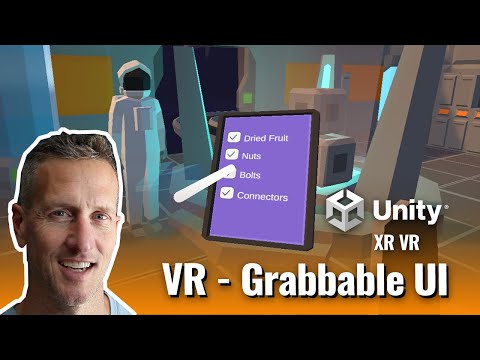
Unity VR XR Interaction Toolkit Grabbable UI Canvas Tablet

Unity XR Interaction Toolkit - Adding Haptic Feedback

Unity VR XR Interaction Toolkit - Adding Audio Feedback