Unity Playmaker - Mouse Run Game - Running Fast and Slow
In this mini Unity Playmaker - Mouse Run Game - Running Fast and Slow tutorial, we will set up the mouse running fast and slow and rotate the planet based on the run speed. We will also set up the mouse and trigger the animations based on the key down or key up. (to Join my discord server add a com
This mini-series kicks off a mouse-run game with a fun twist on the endless runner: the mouse stays put while the planet rotates beneath it, chasing a moon made of cheese it can never reach. This episode builds the core loop — jog by default, sprint while the space bar is held — by rotating the world at two speeds and swapping animations to match.
Step 1 — What's already in the scene
The setup: a world sphere with game objects attached, an empty game manager, the cheese moon, and the mouse player with two animations — a jog and a fast run — wired in the Animator with triggers named run and jog for the transitions between them. Those triggers are what the FSM will pull.
Step 2 — Rotate the planet at jog speed
On the game manager, add a new FSM named Jog. Add a Transform Rotate action, switch the target from owner to specific game object, and drag the world in. Rotation happens on the X axis so the planet rolls toward the camera. Here's the key design decision: instead of hard-coding the speed, create a new float variable called run speed and feed it into the rotation. Set it to -0.2 — negative so the planet rolls the right direction. Test it: the world turns slowly and the mouse jogs along, forever short of the cheese. Because the rotate action reads a variable, changing speed later is just changing one number.
Step 3 — Sprint on space bar
Add a Get Key Down action listening for the space bar (a mobile touch event slots in the same way later), firing a new event called fast run into a new Fast Run state — hold Ctrl/Cmd and drag to create the transition. In Fast Run, copy the rotate action from the jog state, then add a Set Float Value that changes run speed to -1. No every-frame needed — it changes once and it's done. Since the rotation reads run speed, the planet immediately spins five times faster.
Step 4 — Swap the animation
A faster planet under a jogging mouse looks wrong, so add a Set Animator Trigger action in the same state — position in the action stack doesn't matter — targeting the player and firing the run trigger. Now the sprint animation kicks in the moment the world speeds up.
Step 5 — Release to jog again
Add a Get Key Up on the space bar in Fast Run, firing a new jog event that transitions back to the jog state. Then mirror the sprint actions on the way back: paste in the Set Animator Trigger with the jog trigger, and a Set Float Value restoring run speed to -0.2. Test the full loop — jogging, hold space to sprint with the fast-run animation and quicker planet, release to settle back into the jog. Next episode adds a stamina system so the sprint can't last forever.
Related Tutorials
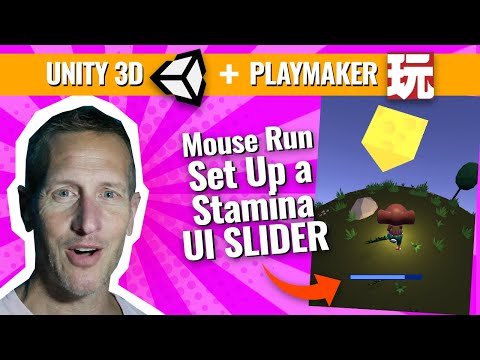
Unity Playmaker - Mouse Run Game -Drain and Fill Stamina Bar

Making a Mobile Bounce Game with Unity 3D and Playmaker - Making a Level Complete System

Learn how to make Games: Unity (Part 8) - Zapping those enemy ships with Unity 3D and Playmaker!
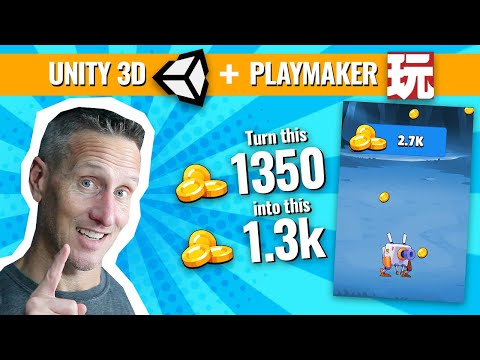
Unity and Playmaker - How to shorten UI number and add K

Making a Mobile Bounce Game with Unity 3D and Playmaker - Creating the Ball and Paddle
